File History can automatically copy your Windows photo folders to a portable drive while it is connected. Start with one small folder and check that its photos appear in the backup.
What you need
A Windows 11 computer, a working portable drive with room for backups, and ordinary photo files saved on the computer. File History is included with Windows. You do not need to buy another app.
This guide is for a first setup. If File History already protects this computer, keep that arrangement and use the maintenance guide instead.
Before you start
Keep your existing photos and any spare copies. A picture visible in an online service is not necessarily downloaded onto this computer. For this first setup, choose photos you can already open without an internet connection.
File History protects included folders. It does not automatically collect photos from every phone, online account or photo-editing app.
1. Choose a small photo folder
Press Windows key + E to open File Explorer. Click Pictures on the left and find a small folder you recognise. Open it and check a few photos, then return to the folder’s name.
Write down its location. You might write Pictures > 2025 Christmas. The > simply means “inside”. Keep this note beside you.
File History uses Windows libraries: groups of folders Windows brings together. For a photo folder outside Pictures, right-click it and choose Show more options > Include in library > Pictures. This adds it to the group without moving the photos.
2. Connect the backup drive
Plug in the portable drive. In File Explorer, click This PC and identify it by its name and letter. Open it to make sure it is the drive you intend to use.
Do not continue if Windows asks to format or erase it. Nor should you change an unfamiliar existing backup. Resolve that before starting this setup.
The backup must be on a different physical drive from your working photos. Two folders on the same drive would both be lost if that drive failed.
3. Open File History and select the drive
Click Start, type Control Panel, and open Control Panel. With View by set to Category, choose System and Security, then Save backup copies of your files with File History.
Click Select drive, choose the portable drive you identified, and click OK. Confirm its name on the File History screen before clicking Turn on.
If prompted to move an existing backup or choose an unfamiliar history, stop. Those choices need a separate check of what is already protected.
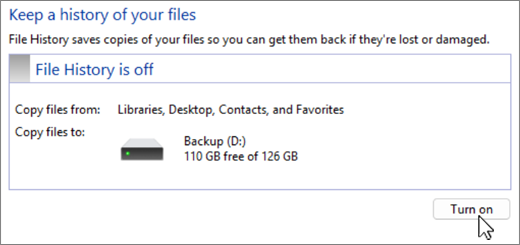
4. Check what is included and let it finish
Open Exclude folders and check that your chosen photo folder, or a folder containing it, is not listed. If it is excluded, leave the settings as they are until you understand why.
Return to the main File History screen. Leave the drive connected while the first backup runs. Wait until it has finished and shows a recent completed copy time without an error.
The first copy can take a while. Leave the computer awake and connected to power if needed.
5. Look for your photos in the backup
Return to File Explorer and the actual photo folder you wrote down. Right-click its name and choose Restore previous versions. If necessary, look under Show more options.
Select the new dated version. Open the arrow beside Open, then choose Open in File History. Browse that saved folder and open a familiar photo. Close the preview when finished; do not click Restore for this check.
Check it worked
File History shows the intended drive and a completed backup. You can also find and open a photo from the saved version of your chosen folder.
That is a useful first check. Practising recovery into a separate folder is the next step before relying on this arrangement.
If you get stuck
No dated version appears: check that the backup finished and the folder is included. A switched-on setting alone is not proof of a saved copy.
You only see online pictures: download the needed originals first. Do not assume thumbnails mean File History has the files.
The drive does not appear: check its cable and whether it opens under This PC. Avoid changing backup destinations at random.
Next step
Practise recovering photos with File History.
Sources and date checked
Researched against Microsoft’s File History instructions on 9 September 2026. I have not yet performed this setup on a Windows PC for this guide.