You can check a File History backup by recovering a small photo folder into a new location. Keep the original folder untouched while you practise.
“Recover” means getting a usable copy back from the backup. Windows calls this Restore.
What you need
Your Windows 11 computer, the portable drive used by File History, and a completed File History backup containing a small photo folder. Allow enough free space on the computer for another copy of that folder.
This guide is for File History backups. An ordinary folder copied manually onto a drive opens directly in File Explorer instead.
Before you start
Choose a small folder whose original photos still open. There is no need to delete anything to practise recovery. I would start with a few familiar holiday or family pictures.
If the folder is very large, choose a smaller backed-up folder inside it. You only need a manageable trial today.
1. Make an empty place for the recovered copy
Connect your File History drive. Press Windows key + E to open File Explorer.
Open This PC, then Local Disk (C:), Users, and your own Windows user folder. Its name may be a shortened version of your name. Open Downloads there.
Right-click an empty area and choose New > Folder. Name it Photo recovery check 2026-09-09, using today’s date, and press Enter. Keep it empty.
Using this local Downloads folder keeps the exercise outside your original photo folder. If this location is unavailable or managed by work, pause and choose a known local folder with help.
2. Find the saved version
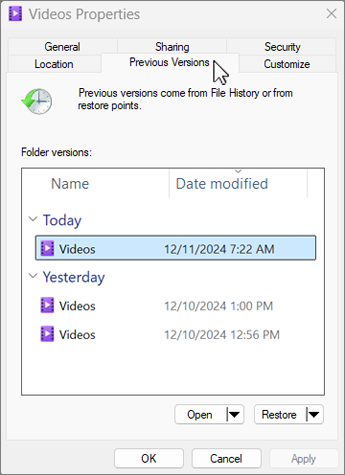
Go to the original small photo folder in File Explorer. Right-click the folder’s name and choose Restore previous versions. Look under Show more options if needed.
Use the actual folder location, not a shortcut inside a Windows library. Select the dated version you want to check from Previous Versions.
Choose a backup date when your example photos were already in that folder. A backup made before you added them cannot contain them.
3. Recover into the empty folder
Do not click the main Restore button. It can replace the current folder. Use the small arrow beside Restore, then choose Restore to….
In the location window, select the empty Photo recovery check folder you created in Downloads. Confirm that destination and start the recovery. Leave the portable drive connected until it finishes.
If Windows asks to replace files, cancel. Your check destination should be empty. If Restore to… is missing, stop rather than guess at another button.
4. Open the recovered photos
Return to your new folder in Downloads. Open the recovered photo folder inside it and double-click each photo in your small trial.
Check that the pictures are recognisable and clear. If you included a video, play it and move towards the end. Open files from the recovery folder, not from the originals or a list of recently viewed photos.
Then revisit the original photo folder. It should still be in its original location, with its photos unchanged.
5. Write down the result
A short paper note is enough: Checked 9 September. Recovered Christmas folder from 8 September backup. Six photos opened. Originals unchanged. Use your own dates and result.
If something failed, name it: One video would not play is more useful than Backup probably fine. Keep the recovered files while you investigate.
Check it worked
You recovered the selected folder to a separate location, opened its photos, and left the originals untouched. That proves the checked files were recoverable from that backup date.
It does not prove every photograph is safe. Repeat with a small sample from each important folder over time.
If you get stuck
No versions are listed: reconnect the correct drive and check that File History has completed a backup of this folder.
The photo is missing: check the chosen date and original folder location. Try a later saved version if the photo was added afterwards.
A recovered file will not open: compare it with the original using the same viewer. Keep both; the issue needs checking before you rely on that file.
Next step
Keep your File History photo backup up to date.
Sources and date checked
Researched against Microsoft’s File History recovery instructions on 9 September 2026. I have not yet performed this recovery exercise on a Windows PC for this guide.